
Step 1In BaseShot
Open Agents.
Open Settings in the BaseShot desktop app, then go to Agents.
Let your agent see your screen, record what it did, and read the videos your team sends.
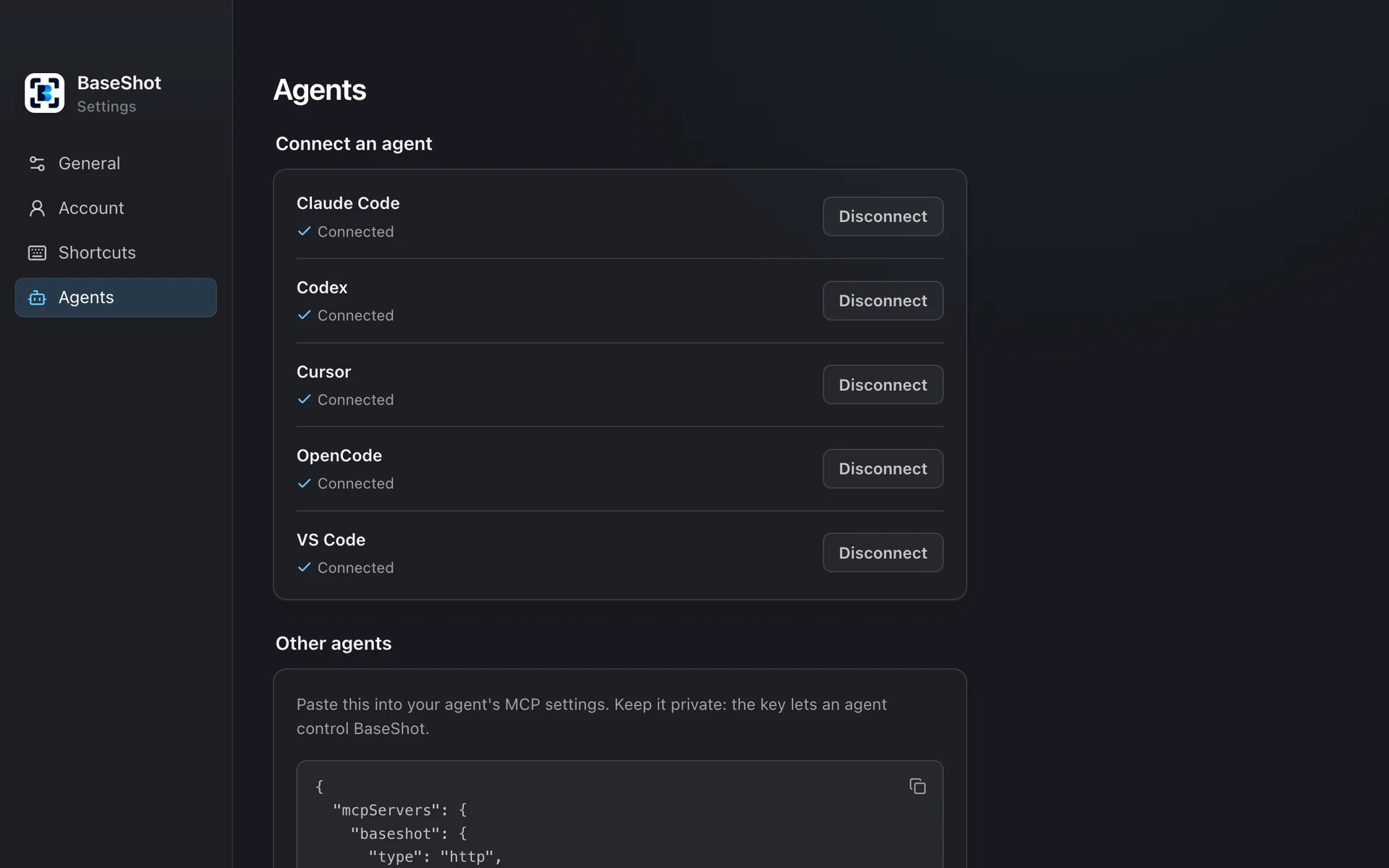
Open Settings in the BaseShot desktop app, then go to Agents.
Click Connect next to Claude Code, Codex, Cursor, OpenCode, or VS Code.
Then just ask. Try “Take a screenshot of my screen and tell me what’s on it.”
Using Claude on the web or your phone? Add BaseShot from Claude's connectors.
Your agent can finally see what you see. Less explaining, less copying and pasting, and more getting things done.
Something looks wrong? Ask your agent to take a look. It sees the same thing you do, so you can skip the long explanation.
Ask your agent to record the fix in action, then watch it for yourself.
Paste a link to a recording from your team. Your agent sees what went wrong and gets to work.
Ask it to look at your whole screen, one window, or just the part that matters.
Have it record a demo or a bug, with your voice and camera if you want them.
Ask for that screenshot from earlier instead of hunting for it.
Your agent can read the text in any screenshot or image for you.
Ask what happens in a recording and get the short version.
Ask for a link and send it to your team.
Missed the walkthrough? Paste the link and ask what it covers.
Describe what you are looking for and your agent finds it.
Ask your agent to leave a comment or answer a teammate.
Have it rename files or move them to the right workspace.
The usual recording controls stay on screen, so you can stop at any time.
Choose your agents, and disconnect them whenever you like.
BaseShot asks you first.
If it supports MCP servers over HTTP, copy the settings from BaseShot and paste them in.
Keep BaseShot open on the same computer as your agent.
Screenshots and recording work with the free app. Uploading and sharing need BaseShot Cloud.